Skip to content
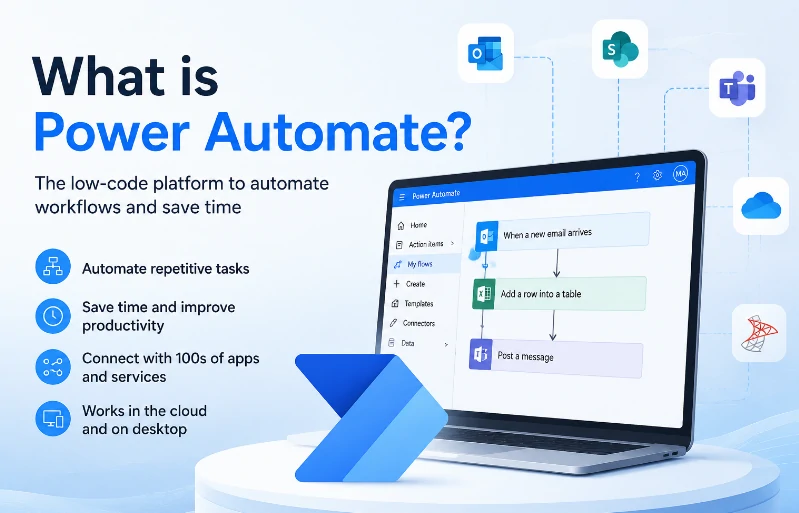
Power Automate is Microsoft’s workflow automation platform for connecting apps, data, approvals, files, notifications, and business processes without building everything from scratch. It helps teams reduce repetitive work, standardize operations, and integrate Microsoft 365 with hundreds of cloud services.
Video Guide: This beginner-friendly overview explains the purpose of Power Automate and how it helps users automate everyday business tasks.
Power Automate Explained
Power Automate is a Microsoft tool that lets users create automated workflows, called flows, between apps and services. These flows can move data, send alerts, collect approvals, synchronize files, and trigger actions based on events, schedules, or user input across Microsoft 365 and third-party platforms.
Video Guide: This quick-start guide introduces Power Automate within Microsoft 365 and shows where it fits in the broader productivity ecosystem.
Core Purpose and Business Role
Power Automate is part of the Microsoft Power Platform, alongside Power Apps, Power BI, and Power Pages. Its main purpose is to automate repeatable work so employees spend less time on manual coordination and more time on decisions, analysis, and service delivery.
Common examples include routing approval requests, saving email attachments to SharePoint, notifying Teams channels when forms are submitted, updating Excel rows, or integrating CRM data with business systems.
Based on our internal data and market analysis, here is the breakdown:
| Concept | What It Means | Example Use Case |
|---|---|---|
| Flow | An automated workflow | Send a Teams message when a new form response arrives |
| Trigger | The event that starts a flow | New email, scheduled time, file upload |
| Action | The task performed after the trigger | Create item, send approval, update record |
| Connector | Link to an app or service | Outlook, SharePoint, Excel, Salesforce |
| Template | Prebuilt automation pattern | Approval workflow, file sync, notification flow |
Microsoft’s official Power Automate documentation is the best authority source for platform capabilities, licensing details, and implementation guidance.
How Does Power Automate Work?
Power Automate works by combining triggers, actions, conditions, and connectors into a flow. A trigger starts the automation, actions perform tasks, conditions control logic, and connectors allow different systems to exchange information securely across Microsoft and non-Microsoft applications.
Video Guide: This beginner tutorial demonstrates how to start building automations and understand the basic flow-building experience.
Flow Execution Model
A Power Automate flow follows a logical sequence. It starts when something happens, checks any required rules, performs one or more actions, and then records the result. Users can build flows visually, which makes automation accessible to non-developers while still supporting advanced scenarios for IT teams.
A typical flow process looks like this:
- Choose a trigger
Examples include receiving an email, submitting a Microsoft Form, uploading a file, or reaching a scheduled time. - Add actions
Actions can send messages, update records, create files, request approvals, or call APIs. - Apply conditions
Conditions allow the flow to branch based on rules, such as approval status, department, amount, or customer type. - Connect systems
Connectors link services such as Outlook, SharePoint, Excel, Teams, Dynamics 365, Dataverse, SQL Server, and many third-party platforms. - Monitor and improve
Flow runs can be reviewed, errors can be diagnosed, and performance can be optimized over time.
For business process design support, companies often pair Microsoft guidance with automation specialists such to map manual work into reliable digital processes.
Is Power Automate for Free?
Power Automate includes some capabilities with Microsoft 365 licenses, but advanced features often require paid plans. Free access may cover basic cloud flows in supported environments, while premium connectors, attended desktop automation, unattended robotic process automation, and enterprise-scale features usually need additional licensing.
Video Guide: This getting-started walkthrough helps new users understand how to begin using Power Automate and test basic automation scenarios.
Licensing Basics
Power Automate licensing depends on what you want to automate, which connectors you need, and whether flows run for one user, a team, or an organization. Many Microsoft 365 users can create standard flows using common connectors, but premium services and advanced automation require separate plans.
Based on our internal data and market analysis, here is the breakdown:
| Need | Likely Licensing Consideration | Example |
|---|---|---|
| Basic Microsoft 365 automation | Often included with eligible Microsoft 365 plans | Outlook to SharePoint file saving |
| Premium connectors | Usually requires a paid Power Automate plan | Salesforce, SQL, HTTP, premium APIs |
| Desktop automation | May require desktop/RPA licensing | Automating legacy desktop software |
| Unattended RPA | Requires specific premium licensing | Bot runs without user interaction |
| Enterprise governance | May require admin, security, and environment planning | Multiple departments using shared flows |
Because Microsoft licensing changes over time, always verify current details on the official Power Automate pricing page.
Is Power Automate in Excel?
Power Automate is not built only for Excel, but it integrates strongly with Excel for the web through Microsoft 365. Users can trigger flows from Excel tables, update rows, collect data, send notifications, and connect spreadsheet-based work to broader business processes.
Video Guide: This introduction explains Power Automate fundamentals that apply to Excel-connected workflows and other Microsoft 365 automations.
Excel Integration Scenarios
Power Automate can work with Excel when the workbook is stored in supported cloud locations such as OneDrive for Business or SharePoint. For best results, Excel data should be formatted as a table, because Power Automate actions typically read and update structured rows.
Common Excel automations include:
- Adding new rows when a form is submitted
- Sending alerts when spreadsheet values meet a condition
- Updating Excel from SharePoint, Dataverse, or CRM records
- Creating approval workflows based on spreadsheet entries
- Moving Excel-based tracking processes into more scalable systems
- Exporting structured business data for reporting or review
Microsoft provides guidance for Excel-related connectors through Power Automate connector documentation, which is useful when designing reliable spreadsheet automations.
What Are the Benefits of Power Automate?
The main benefits of Power Automate are time savings, fewer manual errors, faster approvals, better process consistency, easier system integration, and improved visibility into work. It allows teams to automate routine tasks while keeping business users involved in designing practical solutions.
Video Guide: This beginner-focused video highlights common Power Automate use cases and explains why teams adopt workflow automation.
Operational Advantages
Power Automate is valuable because it addresses everyday friction in business operations. Many teams rely on email reminders, spreadsheets, copy-paste work, and manual follow-ups. Power Automate replaces those repetitive steps with controlled workflows that run consistently.
Key benefits include:
- Productivity gains: Employees spend less time on repetitive administrative work.
- Reduced errors: Automated data movement reduces copy-paste mistakes.
- Faster approvals: Requests can be routed instantly to the right person.
- Better accountability: Flow history shows what happened and when.
- System integration: Microsoft 365, cloud services, and business systems can work together.
- Scalability: Processes can be standardized across teams and departments.
- Improved compliance: Workflows can enforce required steps and approval rules.
Key Features & Comparison
Power Automate offers cloud flows, desktop flows, connectors, approvals, templates, AI-assisted automation, monitoring tools, and integration with Microsoft Power Platform. Its strongest value comes from connecting business systems and automating decisions, notifications, approvals, and data movement across departments.
Video Guide: This video explains cloud flows and desktop flows, two of the most important automation types in Power Automate.
Feature Comparison by Automation Type
Power Automate supports different automation patterns. Cloud flows are best for app-to-app automation, desktop flows are useful for legacy desktop tasks, and business process flows help guide users through structured stages.
Based on our internal data and market analysis, here is the breakdown:
| Feature | Cloud Flows | Desktop Flows | Business Process Flows |
|---|---|---|---|
| Best For | Cloud app automation | Desktop and legacy app automation | Guided business processes |
| Typical Trigger | Email, form, file, schedule, API | User action or bot execution | Record stage changes |
| Common Apps | Outlook, Teams, SharePoint, Dataverse | Desktop apps, web apps, older systems | Dynamics 365, Dataverse |
| Skill Level | Beginner to intermediate | Intermediate | Intermediate to advanced |
| Main Benefit | Fast integration across services | Automates systems without APIs | Standardizes process stages |
| Example | Notify Teams after form submission | Copy data from desktop app to portal | Sales qualification workflow |
Power Automate is particularly strong when paired with Microsoft Power Platform because automations can support apps, analytics, data models, and AI-enhanced workflows in one ecosystem.
Cost & Buying Factors
The cost of Power Automate depends on user count, flow complexity, premium connector needs, desktop automation requirements, governance expectations, and whether processes run attended or unattended. The right buying decision starts with identifying business-critical workflows and the systems they must connect.
Video Guide: This forward-looking discussion helps compare build approaches and decision factors for Power Automate implementations.
Pricing and Selection Criteria
Before buying or expanding Power Automate, organizations should assess both licensing and implementation effort. A simple notification flow may be inexpensive, while enterprise automation involving premium connectors, Dataverse, RPA, and governance requires more planning.
Important buying factors include:
- Connector requirements
Identify whether required systems use standard or premium connectors. - User model
Decide whether flows are personal, team-based, department-wide, or enterprise-wide. - Automation type
Determine whether you need cloud automation, desktop automation, or both. - Run frequency and volume
High-frequency flows may require closer monitoring and capacity planning. - Security and compliance
Consider data loss prevention policies, environment strategy, and admin controls. - Support and ownership
Define who builds, reviews, maintains, and troubleshoots automations. - Return on investment
Compare licensing and build cost against saved labor, faster cycle times, and reduced errors.
For current licensing information, use Microsoft’s official Power Automate pricing page as the final reference.
Conclusion
Power Automate is a practical automation platform for modern organizations that want to streamline repetitive work, connect applications, and improve process consistency. It is especially valuable for Microsoft 365 users, but successful adoption depends on choosing the right workflows, licenses, connectors, and governance model.
Video Guide: This introductory video reinforces the core concepts and helps viewers understand how Power Automate fits into everyday automation planning.
Practical Next Steps
Power Automate is often the easiest entry point for business automation because it combines visual workflow design with deep Microsoft 365 integration. The best results come from starting small, proving value, and then expanding into more strategic process automation.
Recommended next steps:
- Identify one repetitive task that happens frequently.
- Confirm which apps, files, users, and approvals are involved.
- Check whether standard connectors can support the process.
- Build a simple prototype and test it with real users.
- Measure time saved, error reduction, and turnaround improvement.
- Document ownership, exceptions, and maintenance requirements.
- Scale successful automations with proper governance.
FAQ
A:Microsoft Power Automate is a low-code automation platform that helps users create automated workflows between applications, services, and business systems. It allows businesses to automate repetitive tasks, streamline processes, and improve productivity without extensive programming knowledge.
A:Power Automate can be used for automating daily business tasks such as email notifications, data synchronization, approval workflows, document processing, report generation, and system integration. It connects Microsoft 365 applications like Outlook, Excel, Teams, and SharePoint with other services to create automated workflows.
A:Power Automate works by creating automated workflows called “flows.” A flow starts with a trigger, such as receiving an email, updating a file, or reaching a scheduled time, and then performs predefined actions automatically. Users can build flows using templates or a visual drag-and-drop interface.
A:Power Automate includes both cloud-based workflow automation and Robotic Process Automation (RPA). Cloud flows automate tasks between online applications and services, while desktop flows use RPA technology to automate repetitive actions on computers, including legacy desktop applications.
Take Automation Further with AUTmachine Labeling Solutions
Power Automate helps businesses automate repetitive tasks and improve workflow efficiency. In manufacturing, AUTmachine applies the same automation concept to labeling processes with reliable automatic labeling machines, helping companies reduce manual work, improve labeling accuracy, and optimize production lines.
Need an automated labeling solution? Contact AUTmachine for a customized machine recommendation.

Get Your Perfect Labeling Machine Today
Send samples or visit for a live demo!